Klaviyo is one of the most popular email marketing apps for Shopify. Many Shopify store owners rely on Klaviyo to send campaign emails and automated emails. However, Klaviyo's functionality doesn't stop there. By setting up back-in-stock alerts, you can automatically notify customers when an out-of-stock product becomes available again. This helps boost customer purchase intent and increase sales.
In this article, we'll walk you through how to set up back-in-stock alerts using Klaviyo.
What Is Klaviyo?
![Klaviyo [Email] | Shopify App](https://cdn.shopify.com/s/files/1/0611/3542/1693/files/shopify-apps-_recommend-17.png)
Klaviyo is one of the most popular email marketing apps among Shopify apps. It offers everything you need for email marketing and integrates with a wide range of Shopify apps. With Klaviyo, you can set up automation emails such as "send this content to customers automatically when XX happens."
You can also display a back-in-stock notification form when a product is out of stock, and automatically send an email to anyone who signed up for that notification once the product is restocked.Source: https://tsun.ec/blogs/articles/31
Price: Free~
*Email is free for up to 250 sends, and SMS is free for up to 50 sends. Beyond that, paid plans apply. Please refer to the official page for details.
The article below explains the benefits of using Klaviyo and how to set it up in detail. Please use it as a reference.
What Is Klaviyo? Benefits and Initial Setup for Shopify Stores
The article below also explains the benefits and drawbacks of email marketing along with the types of emails you can send. Please use it as a reference.
What Are the Benefits of Email Marketing? Shopify Email Apps Introduced
What You'll Get by Following This Guide
A back-in-stock notification form automatically displayed when a product is out of stock
As shown in the video, when a customer visits a product page for an out-of-stock item, a text link that opens the back-in-stock notification form is displayed automatically. Clicking the link brings up the notification form.
An automatic restock notification email sent when the product is back in stock
When inventory is replenished, an email like the one below is automatically sent to customers who subscribed via the back-in-stock notification form.
The email shown below uses the default settings, but the body of the email can be fully customized.

How to Set Up Back-in-Stock Alerts with Klaviyo
Setting up back-in-stock alerts involves the following 4 steps.
- (1) Enable the embedded app
- (2) Create a Flow using the Back in Stock template
- (3) Get your Public API Key
- (4) Insert the snippet into your Shopify theme
Let's go through each step in detail.
(1) Enable the embedded app
First, open the theme editor by going to Online Store > Shopify Themes > Customize.
Next, enable the Klaviyo embedded app as shown in the image below, then save.

(2) Create a Flow using the Back in Stock template
As shown in the video below, select the Back in Stock template from Klaviyo's Flows, create a new Flow for back-in-stock alerts, and set its status to Live.

1. Select Flow from the left menu
2. Click "Create Flow"

3. Enter "Back in stock" in the search box and search
4. Click "Back in Stock Flow"

5. Click "Create Flow"

6. Click "Update action statuses" in the top right of the screen

7. Change the Flow status to "Live"
8. Click "Update Statuses"
(3) Get your Public API Key
Follow the numbered steps in the image below and copy the code shown at ⑤.

(4) Insert the snippet into your Shopify theme
First, go to Klaviyo's help page and copy the code shown in the image below.
You can find Klaviyo's help page here


Other Customization Options
Adjusting when the back-in-stock notification email is sent
You can configure the inventory level at which Klaviyo sends the back-in-stock notification.
By default, it's set to send automatically once inventory reaches 1 or more, but you can change the inventory threshold that triggers the automatic send.
Follow the numbered steps in the image below and set the value of ⑤ "Minimum Inventory to Notify" to the inventory count you'd like to trigger the send.

Customizing the back-in-stock notification email content
The content of the back-in-stock notification email can be customized within the Flow you created in step (2) above.
Open the back-in-stock Flow, click the email icon action as shown in the image below, then select Edit under Content on the left to open the email content editor.

Customizing the text of the form-opening link
To customize the text of the link that opens the back-in-stock notification form, edit the text inside the double quotes of "product_page_text: "Notify Me When Available"" within the snippet used in step (4) above.
Customizing the back-in-stock notification form
To customize the back-in-stock notification form, edit the items under "modal" within the snippet used in step (4) above to change the text and colors.
Shopify Apps That Make Klaviyo Even More Useful
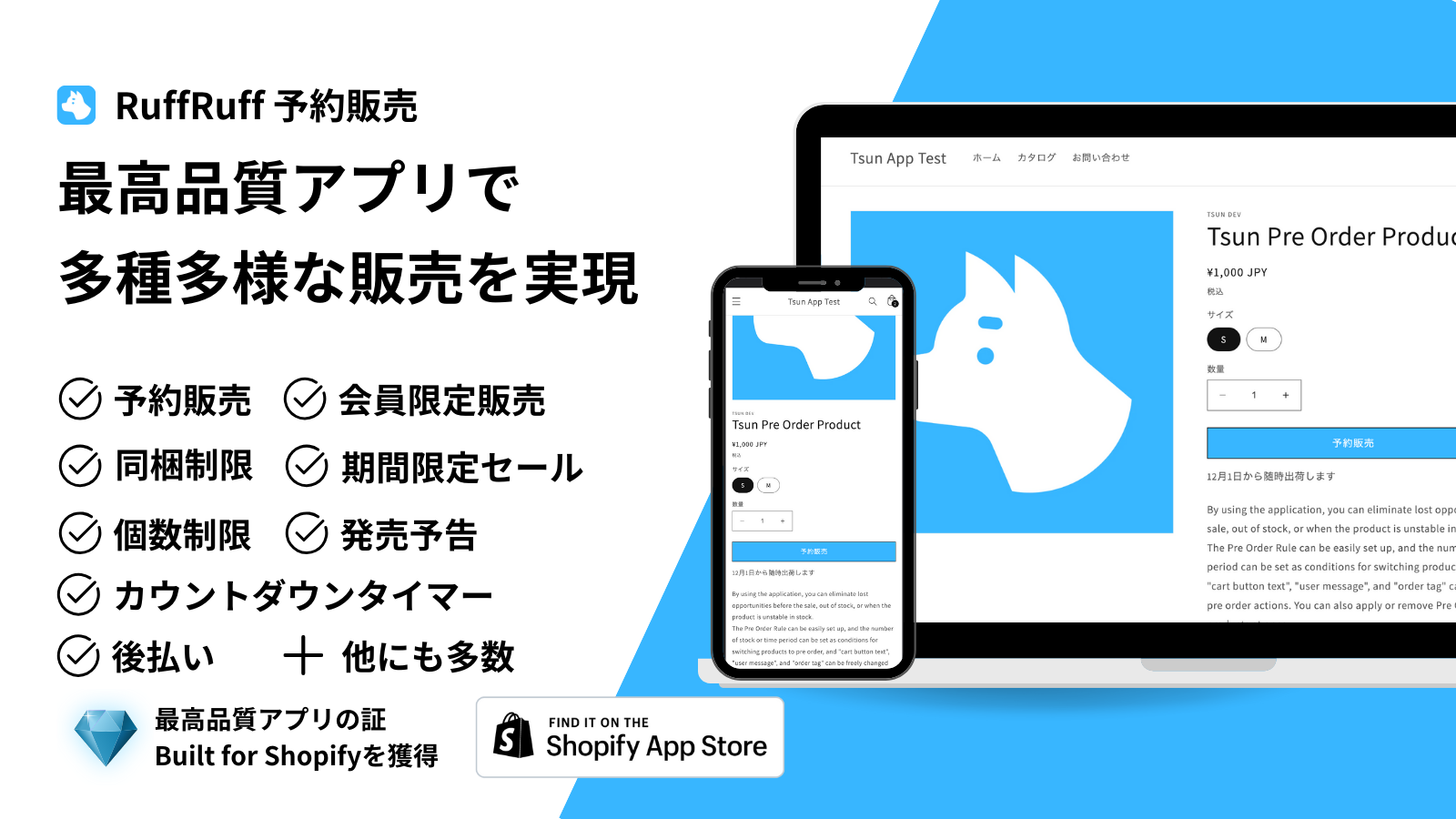
RuffRuff Pre-Orders
RuffRuff Pre-Orders helps reduce the lost sales opportunities that occur when a product is out of stock, before a new product launch, or while waiting for restock.
It lets you set up pre-orders on your Shopify store remarkably easily, with no limit on the number of pre-order products or pre-orders you can accept. It can also prevent customers from ordering pre-order and regular items together in the same order, and it can send back-in-stock notifications when the restock date is unknown.
It also comes with many unique features not found in other pre-order apps, such as a "Pay Later" option that lets you collect payment before the item ships.
By using RuffRuff Pre-Orders' back-in-stock notification feature, you can extend Klaviyo's back-in-stock notifications with the following benefits:
- Add back-in-stock functionality to pages other than the product page
- Display and customize a back-in-stock notification button
- Show different notifications for different products
- Set up and customize back-in-stock notifications easily
Combining Klaviyo with RuffRuff Pre-Orders for back-in-stock notifications on collection pages
Combining Klaviyo with RuffRuff Pre-Orders for back-in-stock notifications on product pages
For more details, please refer to the help page below
Setting Up Back-in-Stock Notifications|RuffRuff Pre-Orders Help Center
Summary
We've covered how to set up back-in-stock alerts using Klaviyo. By setting up back-in-stock notifications, you can automatically notify customers when an out-of-stock product is restocked, which boosts purchase intent. This not only helps increase sales but also improves customer satisfaction. Make use of Klaviyo's back-in-stock notification feature to achieve efficient inventory management and customer engagement. For more detailed steps on setting up back-in-stock notifications and other recommended apps, please also see the article below.