
For e-commerce businesses considering sales to overseas customers or serving foreign residents, multilingual support for a Shopify store is essential. However, simply translating isn't enough—there are several points you need to be careful about.
This article clearly explains how to make your Shopify store multilingual, recommended translation apps, and important points to watch for when translating.
If you're considering multilingual support for your Shopify store, please use this as a reference.
2 Reasons Why You Should Add Multilingual Support on Shopify
Here are two reasons why you should add multilingual support on Shopify.
Browser Translation Features Aren't Enough
Modern browsers (Google Chrome, Edge, Safari) now come with built-in translation features as standard. This has made it possible to read pages written in languages other than the user's native language. On the other hand, browser translation features can sometimes lack accuracy and natural phrasing. In particular, mistranslations or unnatural expressions in product descriptions or the purchase flow can damage user trust and lead to site abandonment.
By adding multilingual support on Shopify and displaying natural text in the customer's native language, you can provide a smoother purchasing experience, which can also lead to increased sales.
Meeting Customers' Language Needs Leads to Higher Conversion Rates
With the expansion of cross-border e-commerce, the importance of multilingual support continues to grow. In recent years, the number of foreign consumers within Japan has also been increasing, making multilingual support an unavoidable challenge even for stores targeting the domestic market.
As this shows, meeting the diverse language needs of users is extremely important. By creating an environment where users can comfortably obtain product information in their own language, you can boost their purchasing motivation and improve your conversion rate.
How to Change Shopify's Default Language
First, let's explain how to change Shopify's default language. For cross-border e-commerce, set your default language to the native language of your main target market. If you don't have a specific target market, we recommend "English."
Select "Languages" under "Settings" in the admin. Click the "…" (three dots) to the right of "Japanese (default)" under "Published languages," then click "Change default."

Image source: Shopify admin
The screen below will appear. Select the language you want as the default, then click "Save."

The default language has now been changed.
How to Set Up Multilingual Support on Shopify
Next, let's explain the steps for setting up multilingual support.
STEP 1. Add a Language to Your Shopify Store
First, add the language(s) you want your site to support to your store. Click "Add language," shown on the language settings screen.

Image source: Shopify admin
Select the language you want to add and click "Next." In this walkthrough, we'll add Spanish.

Select the domain to which you want to add Spanish, and turn the switch on. In the walkthrough image, only one domain is shown, but if you have multiple domains—for example, if you own separate domains by country—each domain will be listed, letting you choose which one to add the language to.

Click "Done," and the language will be added.

A newly added language becomes an "unpublished language" and cannot yet be used on the site. So, click the "…" (three dots) next to the added language and select "Publish."

The language has now been published and is available for use on the site.
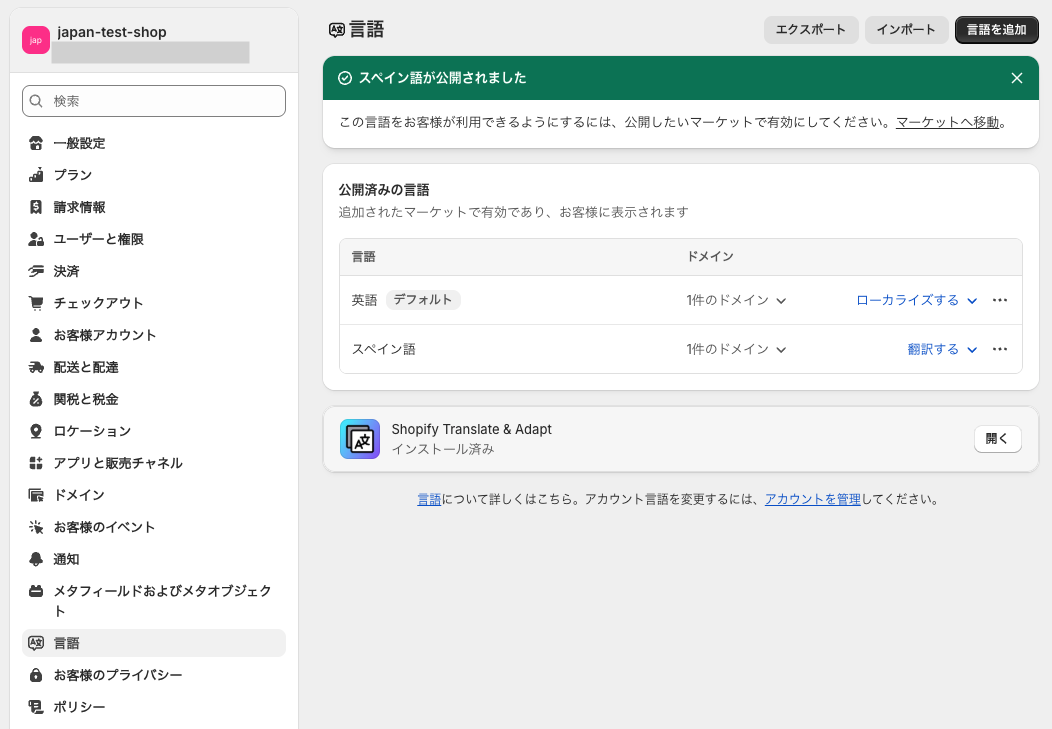
If a language file (a .json file under "locales") for the added language exists in your theme, selecting that language on the site will switch the page's language.
However, this only switches text that has been set up in the language file—content added by the store's creator will not be translated.
STEP 2. Translate Pages Using a Translation App
If there's no language file for the added language, or if you've added content to a page, you'll need to translate it. In this walkthrough, we'll translate English content into Spanish. While you can manually translate each piece of text one by one, since this takes time and effort, we recommend using an app.
When you add a language, Shopify's official translation app "Shopify Translate & Adapt" is automatically installed, so we'll use this app in the walkthrough.
Click "Translate" next to the language, and select "Shopify Translate & Adapt" from the options shown.

The app screen appears; confirm the language you want to translate is shown, then click "Auto-translate."

A confirmation screen will appear; click "Translate."

Once translation is complete, a screen like the one below will appear.

"Shopify Translate & Adapt" can only auto-translate up to 2 languages, so if you want to translate into more languages, you'll need a different app. Please refer to the section "3 Recommended Free Shopify Translation Apps" below.
STEP 3. Add a Language Selector
Add a language selector so users can switch languages. Many themes come with a language selector built in by default. If your theme doesn't have a language selector, consider adding one via an app.
In this walkthrough, we're using the "Horizon" theme, which has a language selector in the header. Turning the switch on and saving displays the language selector in the header.

Let's check on the actual screen. The image below shows the page displayed in the default language, "English."

Switching to Spanish using the language selector switches the content to Spanish as well.

That concludes the explanation of the multilingual setup steps.
Free Plans Available | 3 Recommended Shopify Translation Apps
Shopify offers a wide selection of translation apps for multilingual support. This section handpicks 3 translation apps that you can start using for free.
Hextom: Translate & Currency

Image source: Hextom: Translate & Currency | Shopify App Store
"Hextom: Translate & Currency" (formerly "Translate My Store") is a translation app supporting over 130 languages and over 180 currencies. It supports AI translation via ChatGPT and Google AI, as well as manual editing and bulk import via CSV.
It can also translate handles, meta titles, meta descriptions, and image alt text, supporting multilingual SEO as well. It also integrates smoothly with over 200 third-party apps.
This app is available in Japanese, and its free plan lets you translate into 5 languages.
| Plan Name | Free | Basic | Pro | Business |
|---|---|---|---|---|
| Monthly fee | Free | $9.99 | $19.99 | $49.99 |
| Number of available languages | 5 languages | 10 languages | 50 languages | 133 languages |
*This information is based on data as of June 2025.
Hextom: Translate & Currency is explained in detail in the article below, so please use it as a reference.

Transcy

Image source: Transcy | Shopify App Store
"Transcy" is a multilingual app that has earned the "Built for Shopify" designation, given only to apps of exceptional quality. It supports unlimited translation using AI translation and DeepL, among others. It can also translate images, metafields, and URLs, supporting multilingual SEO as well.
It also supports automatic switching of language and currency based on the customer's location, and its usability is a notable strength. It can also translate all third-party apps.
Transcy is also available in Japanese and can be started for free.
| Plan Name | Free | Basic | Grow | Premium |
|---|---|---|---|---|
| Monthly fee | Free | $11.90 | $29.90 | $59.90 |
| Number of available languages | 1 language | 2 languages | 5 languages | 20 languages |
*This information is based on data as of June 2025.
Shopify Translate & Adapt

Image source: Shopify Translate & Adapt | Shopify App Store
"Shopify Translate & Adapt" is a multilingual app officially provided by Shopify and is completely free to use. It can auto-translate up to 2 languages using the Google Translate API, and manual editing is unlimited.
It supports translation for a wide range of content, including products, collections, blogs, policies, and theme content. Since it's easy to operate, it's recommended for small businesses just starting out with multilingual support.
| Monthly fee | Free |
|---|---|
| Number of available languages | 2 languages |
*This information is based on data as of June 2025.
Shopify Translate & Adapt is explained in detail in the article below, so please use it as a reference.

Important Notes When Translating Your Shopify Store
Here are two important points to keep in mind when translating your Shopify store.
Translation Alone Doesn't Deliver Sufficient SEO Benefits
This article introduced a method for making a single page multilingual by translating it. However, this method alone isn't sufficient as an SEO (search engine optimization) measure for each language.
If you want to seriously pursue multilingual SEO, an effective approach is to create individual pages for each language and perform SEO for each page separately.
However, this also increases cost and workload, so we recommend carefully considering which languages to prioritize for customer acquisition, based on your available internal resources.
A Literal Translation May Not Match On-Site Search Terms
Literally translating product names or descriptions can sometimes create a mismatch with the terms actual searching users use. Google Translate in particular is very convenient, but tends toward literal translation, so caution is needed.
For example, the Japanese word "ryukkusakku" is translated by Google Translate as "Rucksack," but in the United States, "Backpack" is the term commonly used in searches. Differences like this can have a major impact on search results and user experience.
On the other hand, using AI can enable more natural translations that better match local search needs. Consider using generative AI tools like ChatGPT or AI-enabled Shopify apps. By translating in a way that matches the terms users actually search for, you can improve your store's usability and customer acquisition results.
[For Cross-Border E-Commerce] Settings Needed Beyond Multilingual Support
Adding multilingual support on Shopify is the first step toward cross-border e-commerce, but it alone isn't enough. This section introduces essential settings for running cross-border e-commerce.
Setting Up Markets
If you want to sell products to multiple countries or regions, you need to specify the target countries or regions using Markets. With Markets, you can configure different languages, prices, currencies, and shipping rules in detail for each country or region.
Markets is explained in detail in the article below, so please use it as a reference.

Setting Up Shipping Rates for Each Country
To sell to the countries and regions specified in Markets, you also need to set up shipping rates. In cross-border e-commerce especially, shipping costs vary significantly by country and region. In addition, the shipping method and carrier you use can greatly affect both rates and delivery times.
Careful shipping rate settings are important to remain competitive while still protecting your profit margin.
Shipping rate settings for cross-border e-commerce are explained in detail in the article below, so please use it as a reference.

The two items introduced here are essential settings for running cross-border e-commerce. There are several other points to be careful about with cross-border e-commerce as well. For details, please refer to the article below.

Make Your Shopify Store Multilingual and Reach Customers Around the World
This article explained how to add multilingual support to a Shopify store, recommended translation apps, and important points to watch for when translating.
Adding multilingual support on Shopify is extremely important for reaching cross-border e-commerce customers and foreign residents. However, there are points to keep in mind, such as translation accuracy and SEO support.
Use this article as a reference to move forward with multilingual support in a way that fits your business, and build a store that's chosen by even more customers.


