【完全ガイド】Shopifyコラボレーターになる方法:リクエストの送信から承認後の手順まで

[Complete Guide] How to Become a Shopify Collaborator: From Sending a Request to Post-Approval Steps

Tsunライターチーム

For a Shopify Partner to manage a client's store, they need collaborator access to that store. This article explains everything from an overview of collaborator requests, to how to apply, to the steps to take after approval.

What Is a Collaborator?

A collaborator refers to a Shopify Partner who has access to a specific Shopify store. Since this is different from staff, collaborators are not counted toward the staff headcount.

To become a collaborator, the Shopify Partner must send a collaborator request to the Shopify store they want to access, and the store that receives the request must approve it.

For more on Shopify Partners, please also refer to the blog article below.

What Is a Collaborator Request?

A collaborator request refers to the application a Shopify Partner submits in order to become a collaborator on (i.e., gain access to) a specific Shopify store.

What Is a Collaborator Request Code?

The collaborator request code is a feature used to control who can submit a collaborator request to a store — it lets you restrict things so that only people who know the collaborator request code can submit a collaborator request.

If a store has set a collaborator request code, the store needs to share the collaborator request code with the Shopify Partner in order for that Partner to submit a collaborator request to the store.

(How to obtain a collaborator request code)

As mentioned above, the store side needs to obtain the collaborator request code and share it with the Shopify Partner. This section introduces how to obtain the collaborator request code.

How to obtain a collaborator request code

(1) Click "Settings" at the bottom left of the Shopify admin

(2) Click "Users and permissions"

(3) Scroll down to the Collaborators section

(4) Copy the 4-digit code listed as the collaborator request code

How to Send a Collaborator Request

There are two ways to send a collaborator request:

  • Sending it from the Partner Dashboard
  • Sending it using a Shopify app

Let's look at each in detail.

Sending It from the Partner Dashboard

Sending it from the Partner Dashboard

(1) Click "Stores" in the left-hand menu

(2) Click "Add store"

(3) Select "Request access to store"
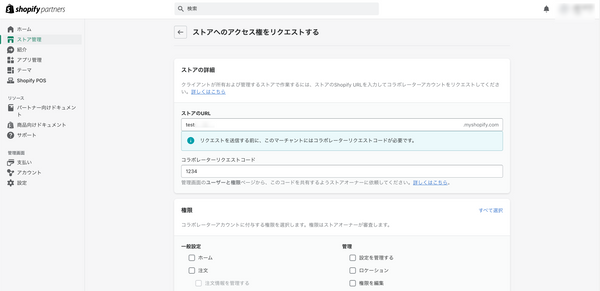
Sending it from the Partner Dashboard_entering required information

(4) Enter the following information

  • The store's URL (xxxxx.myshopify.com) * Already filled in if applying via an app
  • The collaborator request code * introduced above in "How to obtain a collaborator request code"
  • Permissions
  • Message

(5) Click "Request access to store" at the bottom right of the screen

* After clicking "Request access to store," an access-request email is automatically sent to the store owner.


Sending It Using a Shopify App
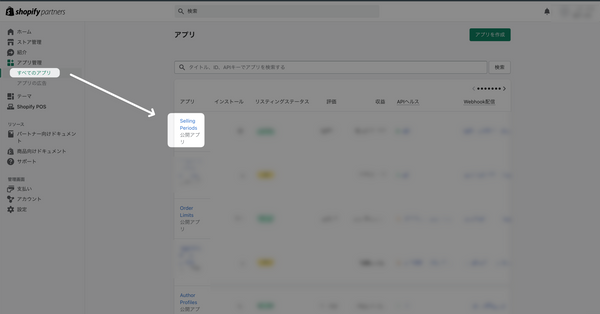
Sending it using a Shopify app

(1) Click "Apps" in the left-hand menu

(2) Click a specific app from the app list

(3) From the stores using that app, click the store you want to request access to
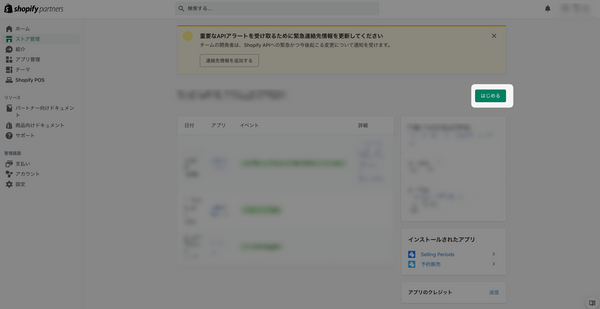
Sending it using a Shopify app_click Get Started

(4) Click "Get started" at the top right of the screen
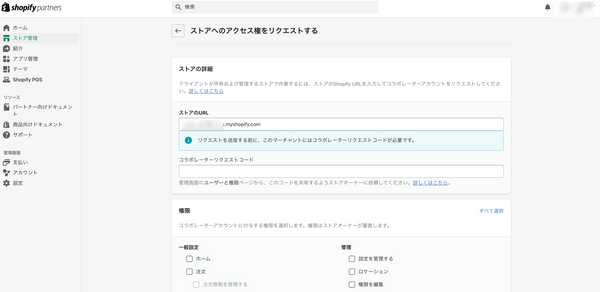
Sending it using a Shopify app_enter the required information

(5) Enter the following information

  • The store's URL (xxxxx.myshopify.com) * Already filled in if applying via an app
  • The collaborator request code * introduced above in "How to obtain a collaborator request code"
  • Permissions
  • Message

(6) Click "Request access to store" at the bottom right of the screen

* After clicking "Request access to store," an access-request email is automatically sent to the store owner.


Steps to Take After a Collaborator Request Is Approved

After submitting your access request as described above in "How to Send a Collaborator Request," approval from the store owner is required. Only once the store owner approves it can you actually access the store. This section introduces the access steps to take after the store owner approves your request.

How to Access a Store as a Collaborator

How to access a store as a collaborator

(1) Click "Stores" in the left-hand menu

(2) Click the "Manage" tab on the stores screen

(3) Click "Log in" for the store you want to access

In Closing

This article explained how a Shopify Partner can apply to access a client's store as a collaborator. By sending a collaborator request and obtaining approval from the store owner, you gain access to the store's admin. You can submit the request either from the Partner Dashboard or from a Shopify app, and once approved, you can access it from the store admin. By managing a store as a collaborator, you can support your client's business.

👆️目次はShopifyアプリ「RuffRuff 目次作成」を利用

👆️Table of contents by the Shopify app RuffRuff Table of Contents

Back to blog
  • Shopifyパートナーとは?登録方法・収益モデル・ランク制度まで完全解説

    What is a Shopify Partner? A complete guide to ...

    Tsun ライターチーム

    An in-depth guide to the Shopify Partner Program! Covers registration, revenue models, the 5-tier system, advancement requirements, and benefits. Find what you need to know, including how to find the...

    What is a Shopify Partner? A complete guide to ...

    Tsun ライターチーム

    An in-depth guide to the Shopify Partner Program! Covers registration, revenue models, the 5-tier system, advancement requirements, and benefits. Find what you need to know, including how to find the...

  • ShopifyのCombined Listingsとは?色違い商品をまとめる設定方法

    ShopifyのCombined Listingsとは?色違い商品をまとめる設定方法

    Tsun ライターチーム

    色違いを別商品として管理しながら、商品ページではまとめて選べるようにするCombined Listings。親商品・子商品の仕組みから設定手順、販売制御アプリとの併用時に確認したい点まで紹介します。

    ShopifyのCombined Listingsとは?色違い商品をまとめる設定方法

    Tsun ライターチーム

    色違いを別商品として管理しながら、商品ページではまとめて選べるようにするCombined Listings。親商品・子商品の仕組みから設定手順、販売制御アプリとの併用時に確認したい点まで紹介します。

  • Shopifyアプリ「Mysbox」とは|福袋・くじ・ガチャを手軽に販売

    Shopifyアプリ「Mysbox」とは|福袋・くじ・ガチャを手軽に販売

    Qikify(Mysboxチーム)

    Mysboxは、Shopifyで福袋・くじ引き・ガチャガチャを作成・販売できるアプリです。開封アニメーションや当選確率の表示、買取機能などの特徴と、料金プラン、セットアップ方法を紹介します。

    Shopifyアプリ「Mysbox」とは|福袋・くじ・ガチャを手軽に販売

    Qikify(Mysboxチーム)

    Mysboxは、Shopifyで福袋・くじ引き・ガチャガチャを作成・販売できるアプリです。開封アニメーションや当選確率の表示、買取機能などの特徴と、料金プラン、セットアップ方法を紹介します。

  • Shopifyでブラックフライデー・サイバーマンデー対策|BFCM対策におすすめアプリ

    Recommended Shopify Apps for Black Friday and C...

    Tsunライターチーム

    For store owners preparing BFCM promotions on Shopify, this article explains how to choose purchase limits, gifts, VIP early access, limited-time sales, and bundles. It also covers the 2026 dates...

    Recommended Shopify Apps for Black Friday and C...

    Tsunライターチーム

    For store owners preparing BFCM promotions on Shopify, this article explains how to choose purchase limits, gifts, VIP early access, limited-time sales, and bundles. It also covers the 2026 dates...

  • Shopifyの通貨設定方法!日本円への変更・価格表示・多通貨対応まで解説

    How to Configure Shopify Currency Settings: Jap...

    Tsun ライターチーム

    Learn how to change your Shopify store currency to Japanese yen or US dollars, format JPY and decimal places, and configure multiple currencies for each market. This article also explains...

    How to Configure Shopify Currency Settings: Jap...

    Tsun ライターチーム

    Learn how to change your Shopify store currency to Japanese yen or US dollars, format JPY and decimal places, and configure multiple currencies for each market. This article also explains...

  • Shopifyアプリ「ChatGPT Ads」とは?機能・料金・注意点を解説

    What Is the ChatGPT Ads Shopify App? Features, ...

    Tsun ライターチーム

    An introduction to the features and pricing of OpenAI's ChatGPT Ads Shopify app. Learn about product information syncing, ad creation and performance measurement, availability for stores in Japan, ad costs,...

    What Is the ChatGPT Ads Shopify App? Features, ...

    Tsun ライターチーム

    An introduction to the features and pricing of OpenAI's ChatGPT Ads Shopify app. Learn about product information syncing, ad creation and performance measurement, availability for stores in Japan, ad costs,...

1 of 6
1 of 3
  • Our Editorial Process

    For readers new to e-commerce and Shopify, we write our articles with care to explain difficult commerce and marketing terms, along with how everything works from building a store through to selling, as “gently,” “clearly,” and “accurately” as we can.

    Learn more 
  • About the information on this site

    The information published here is based on Tsun Inc.’s own experience and research. While we make every effort to publish information that is as “current” and “accurate” as possible, we cannot fully guarantee its contents. Tsun Inc. accepts no liability whatsoever for any damages arising from this site. If you find an error in the information published here, we would be grateful if you would contact Tsun Inc.